Troubleshooting Missing OpenType Font Glyphs and Ligature Substitutions in Multilingual Photoshop Layouts
Troubleshooting Missing OpenType Font Glyphs and Ligature Substitutions in Multilingual Photoshop Layouts
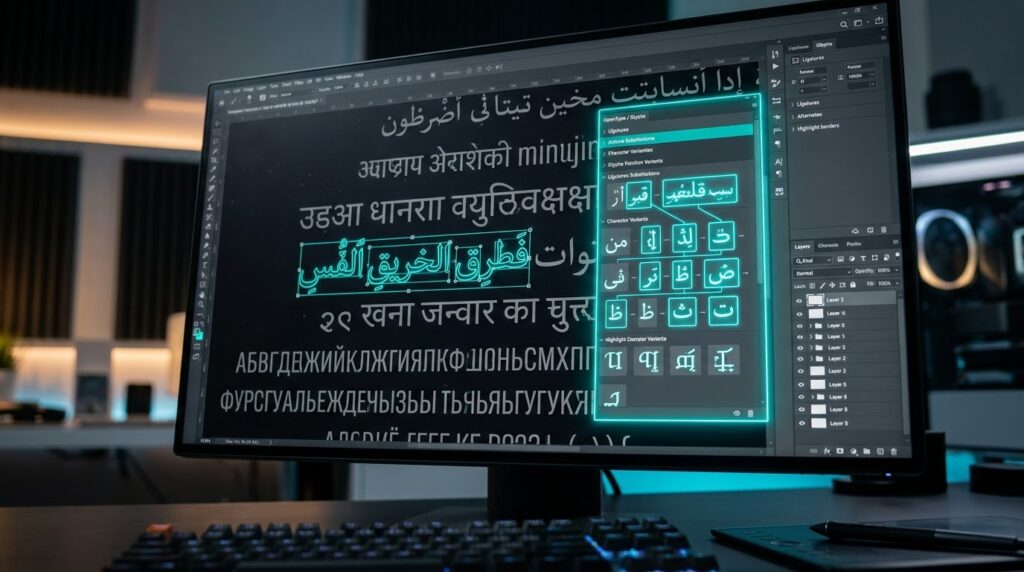
Missing OpenType font glyphs and unwanted ligature replacements can cause major typographic difficulties in multilingual Adobe Photoshop layouts. Marketers, product packaging designers, brochures and digital publication designers may see empty character boxes, wrong symbols, broken letter combinations, irregular spacing, or substituted characters. These challenges are compounded when a document includes several writing systems, changeable typefaces, specialized punctuation and complex OpenType capabilities. A font might support a given language but not have specific glyphs, or Photoshop might replace unsupported glyphs with some other font in a way that doesn’t immediately jump out. Ligatures can add another level of intricacy, because the application may automatically combine certain letter combinations into unusual typographic forms. These features can increase readability and visual uniformity, but incompatible font settings or application limits can cause unexpected outcomes. The solutions for these problems are to verify font coverage, language settings, text rendering options and the behavior of individual OpenType capabilities. This methodical approach to debugging enables designers to fix missing characters, manage ligature substitutions, and maintain consistent typography across multilingual Photoshop projects.
Understanding Ligature Behavior with OpenType Glyphs
OpenType is a typeface technology capable of supporting advanced typographic elements, complex text layout and huge character sets. A single glyph is a distinct visual representation of a character, symbol or collection of characters. Depending on the font design, writing system and typographic context, a single character might have several glyph variations. A ligature is a particular character that combines two or more letters into a single visual character . For example, there are popular combinations of the letters f and i . Other typefaces contain discretionary ligatures, historical forms, contextual alternatives and localized character variants. Photoshop exposes supporting OpenType features through its typography settings, however the options accessible vary depending on the font selected and the version of the application. Missing glyphs occur when the font you selected does not include the character you want or the application is unable to process the text in question. Instead there may be unexpected substitutions due to automated font fallback or due to activated typographic features. Knowing the difference allows a designer to assess whether the problem is one of character coverage, font installation, text shape or a particular OpenType configuration. Identification should be correct to avoid unwanted font changes which would break the remainder of the layout.
Checking Font Installation and Character Coverage
First, make sure you have the typeface you need installed, and that it has the missing characters. Open the font management interface of the operating system and verify that the font family and style you need are available. Notice differences between the regular, medium, semibold, bold and italic versions, as a character supported in one font file can be omitted or designed differently in the other. Then, check the font’s character coverage. Use a font inspection tool or a character map software. Try to find the actual Unicode character, not just the way it looks. In multilingual documents comprising punctuation, accented letters, mathematical symbols or language-specific forms, characters that seem the same may be represented by distinct code points. If the character is not in the font , Photoshop can not display the desired glyph without another font that contains it . If the new font does not display immediately, restart Photoshop after installing a suitable font with the required character coverage. Avoid installing multiple conflicting versions of the same font family. Duplicate font files can cause uneven font selection. Checking coverage before editing removes font limits as a potential source of problems with a program or document.
Diagnosing Missing Glyphs and Auto Font Substitution
Missing glyphs may appear as blank boxes, placeholder symbols, odd punctuation, or characters in a noticeably different typeface. These symptoms suggest that the typeface you have picked doesn’t contain the character you want, or that Photoshop is substituting another font to show unsupported text. Check the text layer you are working on, and make sure you still have the font family and style selected that you want. If only particular characters look different, look at those characters separately, instead of immediately changing the whole font. The fallback font may have the missing character but with alternative dimensions, stroke weights and baseline measures. These variations might affect line spacing and visual uniformity in dense layouts. Copy the impacted text to a new test document, and compare it with a font you know supports the needed script. If the character renders successfully in another font, then the issue may be coverage or shape support in the original typeface. If the problem remains make sure that the character itself is correct and that the document has not replaced something unexpected during copy or import. First, fix the font coverage issue, then tweak the typography and spacing to restore the desired visual hierarchy.
Setting Up OpenType Ligatures and Advanced Typography Options
When you turn on a font’s advanced typography features in a setting where the designer wants individual characters to remain independent, you can encounter unexpected ligatures. Photoshop’s Character panel provides you with settings for text formatting, including available OpenType features. Find the damaged text layer. Check the available ligature settings. Standard ligatures are generally used to improve the look of combinations like fi and fl, although discretionary or historical ligatures might lead to less known forms. Turn off the relevant functionality temporarily and compare the text to see if the replacement is the source of the problem. And if the typeface has contextual alternatives or style settings, check those out, too. The controls offered are varied for each typeface, as each font exposes a different set of features. The ligature is a regular, deliberate element and not a missing character. In cases where a particular letter sequence needs to be visually separate, it is better practice to turn off the corresponding ligature option rather than to insert arbitrary spaces or change the shape of individual characters. Try this adjustment on the impacted text, and make sure that other typographic combinations are still rendering correctly throughout the layout.
Multilingual Text Shaping & Script Support Management
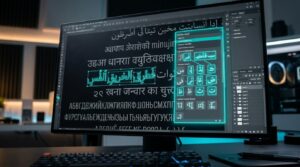
In Photoshop, multilingual layouts require typefaces and text-shaping tools that support the writing systems in use. Complex scripts such as Latin, Arabic, Indic scripts , Southeast Asian writing systems and other scripts , may need contextual substitutions, character reordering, combining marks, or specific shaping behavior . A typeface may include the necessary Unicode characters, but not all of the typographic features needed for correct display. This is particularly significant for scripts where the character appearance depends on surrounding letters or the position of combining marks. If necessary, verify the language and text-engine choices in Photoshop and ensure that the application supports the writing system you want to use. Complex-script behavior could be impacted by legacy text-engine settings, depending on your version of Photoshop. Do not alter those settings, instead save the page and test the setup in a copy. Changing the rendering engine can modify the text layout. Always use a font tailored for the target script, not a general purpose Latin typeface purporting to be multilingual. Check the construction of words, the positioning of punctuation marks, the direction of lines, diacritics and the joining of characters after making modifications. For documents with many scripts, check each language separately before approving the full layout. Proper shape support aids legibility and avoids typographic problems that cannot be fixed solely by changing the font size.
Fixing Unicode and Text Encoding Problems
Sometimes, wrong Unicode characters can appear to be font rendering problems even if the font type you chose is perfectly compatible. Text copied from Web sites, PDF documents, spreadsheets, or other programs may include unexpected code points, combining characters, or visually identical alternatives. For example, a regular hyphen, an en dash, an em dash, and a language-specific punctuation mark may look similar at first glance, but operate differently in typography. Accented characters can be expressed as well by either a precomposed character or a base character and a combining mark. The way the representations interact with fonts and shaping engines can differ. To check a suspected character, use a good character inspector or retype it with a good input method and see what its unicode value is. Check the impacted text against a known-good source, rather than just changing typefaces without checking the underlying characters. If the text comes from a PDF, assess if the source has real text or outlined/substituted glyphs. This can be fixed by replacing the wrong character with the proper unicode character . This does not effect other formatting that is not linked to the character . After adjusting the text check kerning, line breaks and letter spacing. The new glyph may have different measurements. A good foundation for multilingual typesetting is accurate character data.
Using consistent typography across many layouts
Designers commonly reuse the same text styles in several Photoshop works and consistency is vital when working with multilingual content. Develop a documented font system that describes the desired typeface, language support, weight, size, tracking, leading and applicable OpenType capabilities. If you utilize more than one font for a project, identify which typeface is used for each script and use it consistently throughout the entire document set. Do not change between fonts that look similar without examining their glyph coverage and typographic metrics. Even similar-looking typefaces might have character widths and baseline locations different enough to effect wrapping and alignment. Use separate text layers for different language parts where it helps with formatting and troubleshooting. Master document with proven examples of crucial characters, punctuation and ligature combinations. This reference can be used when opening documents from another workstation to find variations. If you’re passing a project back and forth between designers, be sure that the font files you need are correctly licensed and available to the team receiving the project. If an exact font is not available, agree on an acceptable substitution and check the resultant layout before delivery. A consistent typography system helps eliminate substitution errors and makes it easier to handle modification.
Font cache issues and checking for photoshop compatibility
Some font issues are caused by application compatibility, old software, or conflicting font installations, not the document. If the font renders fine in another application but you find missing glyphs or improper substitutions in Photoshop, verify that the installed version of Photoshop supports the appropriate typographic capabilities. If a known compatibility issue is suspected, update the application via the standard software update mechanism. Restart Photoshop after installing or uninstalling fonts so the application can refresh its available font information. If the problem persists, exit the application and use the operating system procedures supported by the operating system to resolve font cache or font management problems. Do not delete system files or edit font databases without fully comprehending the ramifications, as these actions may damage other applications. Create a new Photoshop document and try the problematic font to see if the issue is limited to only that PSD file. If a new document works, then check the original text layer, paragraph settings and document history. If the problem occurs in more than one document, focus on font installation, application compatibility, or system-level setup. Recording the font name, version, Photoshop version and the characters that are impacted can help further diagnosis, especially in collaborative production situations.
Fixing Persistent Bugs in Rendering Glyphs and Ligatures
If missing glyphs or undesirable ligatures are not sorted out, isolate the problem with controlled comparisons. Copy the bad text layer, make a test document and insert in a small sample of the bad characters and combinations. Compare the output with the original font, and with an alternate font with known character coverage, and with different OpenType feature settings. If the alternate font works correctly, test the coverage and shaping support of the original type. If turning off ligatures fixes the problem, it’s better to change the relevant font feature than to change individual characters unnecessarily. If neither modification helps, check the Unicode values, language settings, and how Photoshop is configured to render text. However, a separate page-layout program can offer more appropriate capabilities for language-specific typography and large-scale text handling for complex scripts or huge multilingual publications. When testing solutions, don’t convert live text to raster pictures just to disguise a rendering problem. Keep the original PSD and editable text intact. Rasterization obviates the usual editing of text and should be employed only when production circumstances warrant this limitation. Finally, check the whole layout at the specified output size and make sure that the spacing, alignment, punctuation and character formation are still the same. A systematic debugging procedure helps you to restore dependable font rendering while maintaining the flexibility and professional quality of multilingual Photoshop projects.