How to Fix CMYK Channel Bleed When Exporting Large Format Packaging Files in Photoshop
How to Fix CMYK Channel Bleed When Exporting Large Format Packaging Files in Photoshop
One typical color manufacturing problem is CMYK channel bleed that can damage big size packaging designs exported from Adobe Photoshop. This may result in undesired color fringes, misplaced borders, overlapping color boundaries or unexpected shifts between specific color channels. These difficulties can be particularly visible on product labels, cartons, flexible packaging and large printed images where accurate color registration is critical. In commercial printing, some bleed is intentional, but too much can diminish the clarity of text, logos, fine lines, and ornamental elements. Knowing how Photoshop interprets CMYK color channels, document resolution, export settings, and color profiles can assist designers find the source of the problem. A good debugging approach stops export failures from occurring over and over and cuts down on expensive print production mistakes. By looking at the document structure, evaluating color management settings, inspecting channel boundaries and choosing appropriate output formats, designers can create more consistent packaging artwork. A good preparation before export makes sure that the final files are still usable for the desired printing method and production requirements.
What is CMYK Channel Bleed in Packaging Design
CMYK channel bleed is when the cyan, magenta, yellow, and black components of the file result in undesirable color edges or noticeable misalignment in the produced artwork. In commercial printing each of the colors can be transmitted using a separate printing plate or digital color separation process. If the separations are out of register, you will see color outlines around text, artwork, and other high-contrast items. But identical issues might also originate inside Photoshop from poor layer blending, resampling artifacts, color conversion or inadequate export settings. Designers must identify true registration problems from visual distortions induced by screen rendering or image compression. Large format packaging files require a little extra care as they are usually packed with intricate drawings, accurate product photographs and exact brand colors. Viewing the artwork at actual print size and viewing individual channels will help you determine if the fault is in the source document or only shows after export. If you know the real problem, you will not be making unneeded modifications that could harm the original design.
Check the Photoshop Document Color Mode
The first step in troubleshooting is to check if the Photoshop document is in the desired CMYK color mode. Open the Image menu, select Mode and verify that CMYK Color is checked if your production standard calls for CMYK artwork. If the document was prepared in RGB and then converted later in the workflow, some colors may shift quite a little because the CMYK color gamut is not able to reproduce all RGB hues. These modifications can make the edges of the channels more apparent, especially around saturated blues, greens and strong reds. Save a second working copy (to preserve original artwork) before converting the document, so that the two versions may be compared. Verify that the chosen CMYK profile conforms to the printer’s specifications. Different printing conditions yield different color separations. Do not convert the same file from RGB to CMYK and back more than once. Extra conversions may result in more color shifts. Selecting the appropriate document mode and profile at the beginning of the workflow helps establish predictable color relationships throughout the packaging production process.
Adjusting the alignment of individual color channels
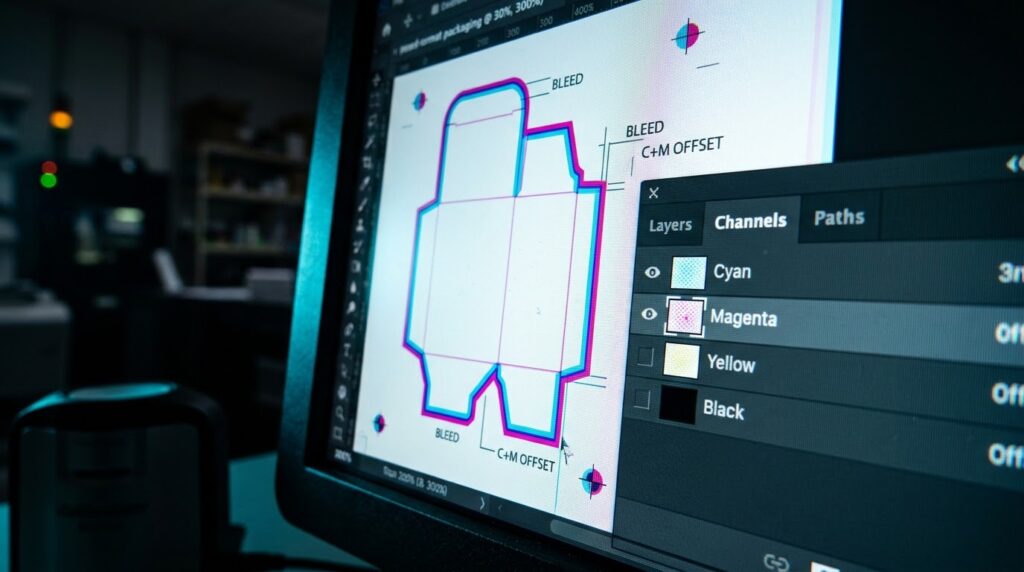
Photoshop even has a Channels window that allows designers to view cyan, magenta, yellow and black content separately. From the Window menu, open the panel and pick each channel separately to inspect the positioning of crucial edges, fine text, and graphic elements. If an undesirable fringe appears in the composite image, inspecting the separate channels can reveal whether one component has an unexpected shape or misplaced detail. Then look at the composite CMYK view to see how the channels combine to give the visual effect. Check out the little black writing on colored backgrounds, the thin borders, and the high contrast logos. These are the easiest to see the variations in separation. Do not move a whole channel just because it looks different than another channel. Each separation inherently has different tonal information. If you need to make any actual registration changes, speak with the print vendor before making changes to the artwork. This inspection procedure helps to separate typical color separation behavior from true channel alignment faults that need to be fixed.
Troubleshooting Layer Effects and Blending
Unwanted colored edges can be generated by effects and blending options, like a bleed from a CMYK channel. When converted or exported to a colorful background several effects like Outer Glow, Drop Shadow, Bevel and Emboss, and other blending modes might not work exactly as they did before. In the Layers panel, try turning off effects one at a time to verify if a particular preset is causing the artifact you see. Be aware of duplicate layers, semi-transparent items, nested groups and adjustment layers that only apply to certain areas of your design. Layer masks can also make uneven transitions if they have undesired gray values at their edges or if they have too much feathering. If the artwork has numerous copies of a logo or text layer, ensure that they are positioned exactly as required and do not generate overlapping color fringes. Smart Objects keep an image’s original data, enabling flexible transformations and updates. Always work on a duplicate layer or saved copy to make changes reversible. Once you’ve found the offending effect or blending interaction, modify its opacity, spread, edge softness, or blending mode, and check the result in the composite CMYK view.
Color Profile and Conversion Settings Verification
Another possible reason of weird hue shifts on export as a package could be incorrect color profile management. Photoshop interprets the relationship between the numerical color values and their desired appearance via incorporated profiles and conversion parameters. Look in the Edit menu for some color management choices to ensure that the working environment is similar to a production environment. If the printer requires the artwork to be converted to a CMYK space of their choice, use Convert to Profile, not just a different profile assigned to current values without conversion. Changing a profile changes the meaning of current numbers, and converting profiles compensates color values to retain look as well as possible in the target gamut. In neither way can a perfect match be guarantyd if the target printing process is not able to recreate the original colors. Consider the options for rendering intent and black point compensation based on the production requirements when employing conversion options. Do not pick a cookie-cutter profile just because it is built into the software. The printer provides or suggests a profile that is a better starting point for achieving consistent color reproduction in large size packing files.
Choosing the Right Export Format and Settings
The chosen export format may affect the way packaging artwork maintains transparency, color information and edge quality. JPEG compression is lossy and can cause noticeable artifacts to appear around high contrast edges and fine detail. These artifacts can look like a channel bleed when you view the produced image at high magnification or against a contrasting background. TIFF is typically used for print output if the printer accepts raster images and demands high quality picture data. Photoshop PSD files can store layers and editing information, but they aren’t necessarily the best final delivery format for a commercial printing operation. If the production process demands a page based document then pdf may be appropriate but how you export is dependent on the requirements of the printer and the construction of the artwork. Ensure that the export preserves the proper CMYK mode, resolution, transparency management and color profile. Do not perform unneeded color conversions or downsample that can destroy subtle package details. Export a test file and compare to the Photoshop document then prepare the final production package.
Large Format Files: Managing Resolution and Resampling
Edge artifacts can be caused by resolution settings or when huge packaging designs are downsized or exported at incorrect sizes. Scaling down a document with small text, fine linework, and complex product illustrations too much might cause the pixel dimensions to become too small and edge clarity to be lost. But raising resolution by interpolation cannot bring back features that were not there in the original artwork. Check the pixel dimensions, document resolution, and resampling options in the Open Image Size before making any changes. Instead of automatically selecting the highest resolution available, know from the printer’s specifications the desired output size and effective resolution. It is not necessary to have the same pixel density for large format manufacturing as for tiny packaging labels; too high a resolution can increase the file size and processing time without any improvement in the end outcome. If you have to resize, save a copy of the original document and compare crucial edges after the resampling. Check crisp lettering, thin borders, contrasting color transitions at actual print sizes. Proper image scaling will lower the probability of interpolation artifacts being misinterpreted as real CMYK channel bleed.
Creating a Good Preflight and Export Workflow
A uniform preflight approach helps catch problems with color separation before packaging artwork gets to the printer. First, save a functioning version, check document size and make sure the color mode and embedding profile conform to the production requirements. – Check each channel individually for layer effects and masks around small text, logos and high contrast visual components. Next, think about transparency, objects that overlap each other and places where multiple colors intersect at important edges. If the design goes to the trim edge of the package, make sure the artwork goes beyond the trim edge by the amount required on the printer’s dieline and production instructions. A physical bleed around a trim edge is not the same as a CMYK channel bleed and should not be considered as the same problem. Export a proof file in the desired format and parameters. Re-open it in Photoshop or another appropriate inspection application to check the final appearance. Ask for a digital proof or a physical press proof on complex works before you sign off on the production run. Recording successful export settings can also assist in preparing future packaging initiatives in a more uniform manner.
Fixing Persistent CMYK Export Artifacts
If you are still seeing unwanted color fringes after the basic checks, try to identify the problem by exporting a simpler copy of the artwork. Remove non-essential effects for now . Simplify interactions between layers . Test a tiny portion with the affected edges . Compare the simplified export with the original document to establish if the artifact is from a particular layer, color conversion or output option. Verify that the problem is not specific to a single image viewer, since some programs show transparency and color profiles differently. Open the exported file in Photoshop and look at the various channels to see if the undesirable edges are really part of the captured pixel data. If the artifact persists, try another printer permitted format without altering numerous settings at once. This controlled comparison helps to find the variable that is responsible. If you suspect print registration problems, send the printer the original artwork and the exported proof, rather than trying undocumented channel shifts. Good color management, the right export settings and systematic diagnostics help you generate clean CMYK package files with reliable edge quality and consistent production outcomes.