Fixing Color Banding in Dark Mode UI Screenshots Using Photoshop Dithering
Fixing Color Banding in Dark Mode UI Screenshots Using Photoshop Dithering
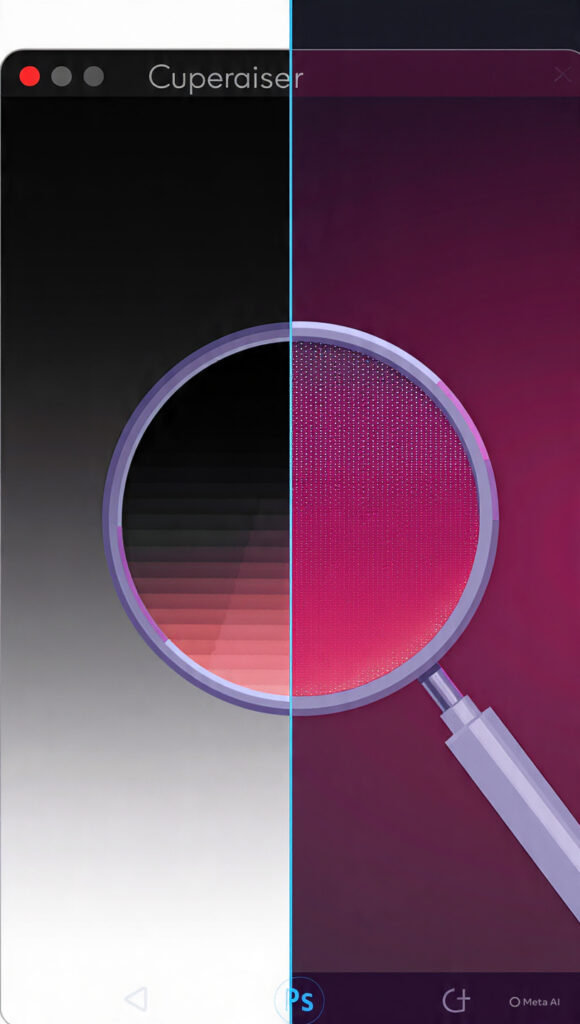
Color banding is a typical problem that becomes quite obvious in screenshots of the user interface when it is in dark mode. This occurs when smooth gradients split into distinct steps or stripes. When it comes to designers, developers, and tech bloggers that want to provide clean and high-quality pictures, this situation is extremely aggravating. When it comes to dark interfaces, it is essential to preserve a premium appearance by using subtle transitions between different hues of black, gray, or deep colors. When banding takes place, it has the potential to make even interfaces that have been carefully designed seem cheap or badly represented. One of the most powerful tools that Photoshop provides to address this problem is dithering, which is also one of the most effective solutions that are accessible. Dithering is a technique that helps smooth out transitions and restore visual consistency. It does this by injecting controlled noise into existing gradients. It is possible to significantly enhance the quality of your user interface screenshots by gaining an understanding of how to effectively employ this strategy. When using a process that is organized, it is possible to guarantee that repairs are consistent across several pictures while yet maintaining detail.
Comprehending the Factors That Contribute to Color Banding in Web Interface Designs
When there are not enough color values to portray a smooth gradient, color banding generally develops. This results in transitions between tones that are noticeable to the naked eye. This is often the consequence of compression, a low bit depth, or export settings that are not properly configured. Additionally, the problem becomes more evident in dark mode interfaces due to the fact that gradients are dependent on minor changes between hues that are comparable. The transitions become abrupt and obvious when these differences are compressed or decreased compared to their original size. There is a possibility that banding will be introduced into screenshots taken from certain platforms or devices owing to the limits of the hardware. Recognizing the underlying reason is helpful in determining the most appropriate technique of repair. In the absence of this comprehension, actions taken to correct bands may result in excessive processing or the loss of information. The first step in finding a solution that works would be to determine if the problem originates from the process of capturing, editing, or exporting the data.
Making Screenshots Ready for Editing in an Accurate Manner
It is essential to prepare your screenshots before applying any kind of repairs in order to guarantee that the results will be accurate. In order to save as much of the color information as possible, you should begin by working with the maximum resolution and bit depth that is available. It is possible to increase the amount of freedom available for edits by converting the picture to a greater bit depth inside Photoshop. Isolating the sections of the interface that are most susceptible to banding, such as gradients in backdrops or user interface panels, is another beneficial technique. The ability to enhance adjustments at a later time is ensured by the organization of layers and the use of non-destructive editing procedures. It is possible to limit the likelihood of creating new artifacts during the rectification process by properly preparing. In this phase, the foundation is laid for a process of editing that is both clean and controlled.
Reducing Banding Through the Application of Gradient Smoothing Techniques
While smoothing gradients using Photoshop’s adjustment tools is one of the primary techniques to correcting banding, there are other approaches as well. The use of blur filters to make subtle modifications might assist to smooth the transitions between tones that are harsh. With the application of a modest Gaussian blur to afflicted regions, it is possible to lessen the appearance of banding without severely affecting the overall sharpness of the image. You are able to target just the troublesome sections of the picture by using masking, which enables you to preserve information in other parts of the image. It is essential to take precautions to prevent excessive blurring, which might give the impression that the interface is blurry or out of focus. Utilizing smoothing in conjunction with tonal tweaks might result in an even more refined gradient. Before incorporating dithering for more sophisticated correction, this approach acts as a basis for the correction process.
Implementing Dithering in Order to Restore Color Transitions That Are Smooth
To achieve the desired effect of dithering, a regulated amount of noise is introduced into a picture. This noise disrupts the uniform regions that are responsible for banding. This is something that may be accomplished in Photoshop by creating a noise layer that has a very limited intensity. In order to disrupt visible bands, the noise should be soft enough that it is not immediately noticed, yet it should be loud enough to be noticeable. Utilizing blending modes such as overlay or soft light is an effective method for incorporating noise into a picture in a transparent manner. A more uniform distribution of color changes is achieved by the use of this approach, which gives the impression of more seamless gradients. Dithering is especially useful for dark mode screenshots since it maintains the general design while lessening the impact of transitions that are too abrupt. The proper use of this technique results in a considerable improvement in visual quality without sacrificing the integrity of the design.
Maintaining Image Clarity While Maintaining a Balanced Noise Level
However, excessive noise may damage picture quality and cause the screenshot to seem grainy, despite the fact that dithering is an effective technique. When it comes to producing a professional outcome, finding the appropriate balance is really necessary. Begin with a noise percentage that is very low, and then gradually raise it until the banding becomes less noticeable. It is helpful to analyze how the picture looks at various sizes by zooming in and out. Additionally, it is essential to take into consideration the ultimate use of the picture, since thumbnails and full-size views could call for various degrees of cropping and editing. It is possible to have precise control over the effect by adjusting the blending modes and the opacity. By preserving clarity while also minimizing banding, one may assure that the finished picture will continue to be crisp and visually attractive.
Utilizing Dithering in conjunction with Color Adjustments to Achieve Superior Results
In the event that the underlying gradient does not have sufficient tonal diversity, dithering may not be sufficient to completely resolve banding. The use of dithering in conjunction with color modifications may lead to improved outcomes in situations like these. Smoother transitions may be achieved by using curves or levels to bring about a minor expansion of the tonal range. In addition, adjusting the color balance may assist in distributing tones throughout the gradient in a more uniform manner. These modifications need to be understated in order to prevent alterations to the user interface’s intended design. These modifications, when coupled with dithering, contribute to an increase in the overall efficacy of the correction. By using this comprehensive method, gradients are guaranteed to seem natural and constant across the whole picture.
The Optimization of Export Settings in Order to Prevent the Recurrence of Banding
Even if banding has been fixed in Photoshop, the problem may still be there if the export parameters are not adjusted correctly. For the purpose of maintaining smooth gradients, it is essential to choose the appropriate file format and compression level. There is a lower likelihood of color degradation, which might result in banding, when the quality settings are higher. In addition to this, it is essential to have the suitable color profile in order to guarantee correct rendering across all devices. By experimenting with a variety of export choices, one may quickly determine the optimal balance between file size and quality. Export parameters that are consistent across all photos guarantee that the outcomes will be the same. In the same way that fixing banding during editing is vital, preventing banding at the export step is also important.
Enhancing User Interface Screenshots Through the Creation of a Repeatable Workflow
It is possible to guarantee that color banding can be treated in an effective manner in future projects by developing a procedure that can be repeated. The storage of presets, actions, or templates that integrate your dithering and adjusting approaches is included in this. The organization of these tools enables the implementation of new screenshots in a short amount of time without having to begin from scratch. The process of improving your workflow based on various circumstances will, over time, enable you to enhance both your speed and your accuracy. Maintaining a consistent editing process not only helps you save time but also improves the overall quality of the visual material you produce. The use of an organized approach guarantees that each and every screenshot is up to the same kind of professional quality. When you have mastered dithering and incorporated it into your workflow, you will be able to develop user interface images that are consistently smooth and of excellent quality.