How to Create Realistic Weather Effects (Rain, Fog, Snow) in Photoshop
How to Create Realistic Weather Effects (Rain, Fog, Snow) in Photoshop
When it comes to digital artwork or photography, the use of weather effects such as rain, fog, or snow may significantly improve the mood, ambiance, and narrative. The incorporation of realistic weather effects into a picture requires considerable attention to be paid to layering, mixing, lighting, and perspective in order to achieve a genuine appearance. Photoshop has a variety of tools and methods that may be used to generate these effects while preserving the realism of the scene.
The Importance of Understanding the Effects of Weather on Visual Content
The visual and emotional characteristics of a photograph are equally influenced by the weather. While snow may generate feelings of serenity or coldness, fog can provide a sense of mystery and depth, while rain can express drama or tension. In order to provide a realistic appearance, it is necessary for the effects to interact with the light, shadows, and reflections present in the picture. This will ensure that the effects do not look unnaturally superimposed.
Getting Ready for the Scene
Use a high-resolution photograph as a starting point, and then separate important aspects such as the foreground topics and the background layers. In order to enable non-destructive editing, it is necessary to convert key layers into Smart Objects. Make certain that the lighting is specified, since weather effects such as fog or rain will interact with the highlights and shadows that are already there.
Producing the Effects of Rain
To create the effect of rain, begin by creating a new layer that is completely black, and then add noise by selecting Filter > Noise > Add Noise. The noise layer is blurred by motion at an angle that corresponds to the direction in which the rain is moving, and the streak length is adjusted to express the strength of the rain. By switching the blending mode of the layer to Screen, you may render the black backdrop invisible while preserving the visibility of the white streaks. Applying a tiny Gaussian blur or duplicating layers to create depth and altering focus may be accomplished by using masks to deliberately lessen the amount of rain that is falling near objects.
Making a Fog and Mist Simulation
For the purpose of painting fog in regions where it naturally occurs, such as valleys or behind objects, you should first create a new layer and then use a broad, soft brush with white or light gray paint. Use a slight Gaussian Blur to achieve seamless diffusion, then experiment with other blending modes such as Overlay, Soft Light, or Screen to incorporate the fog into the image. A careful adjustment of the opacity will allow you to keep the depth while preventing the fog from overpowering the important elements.
Addition of Snowfall
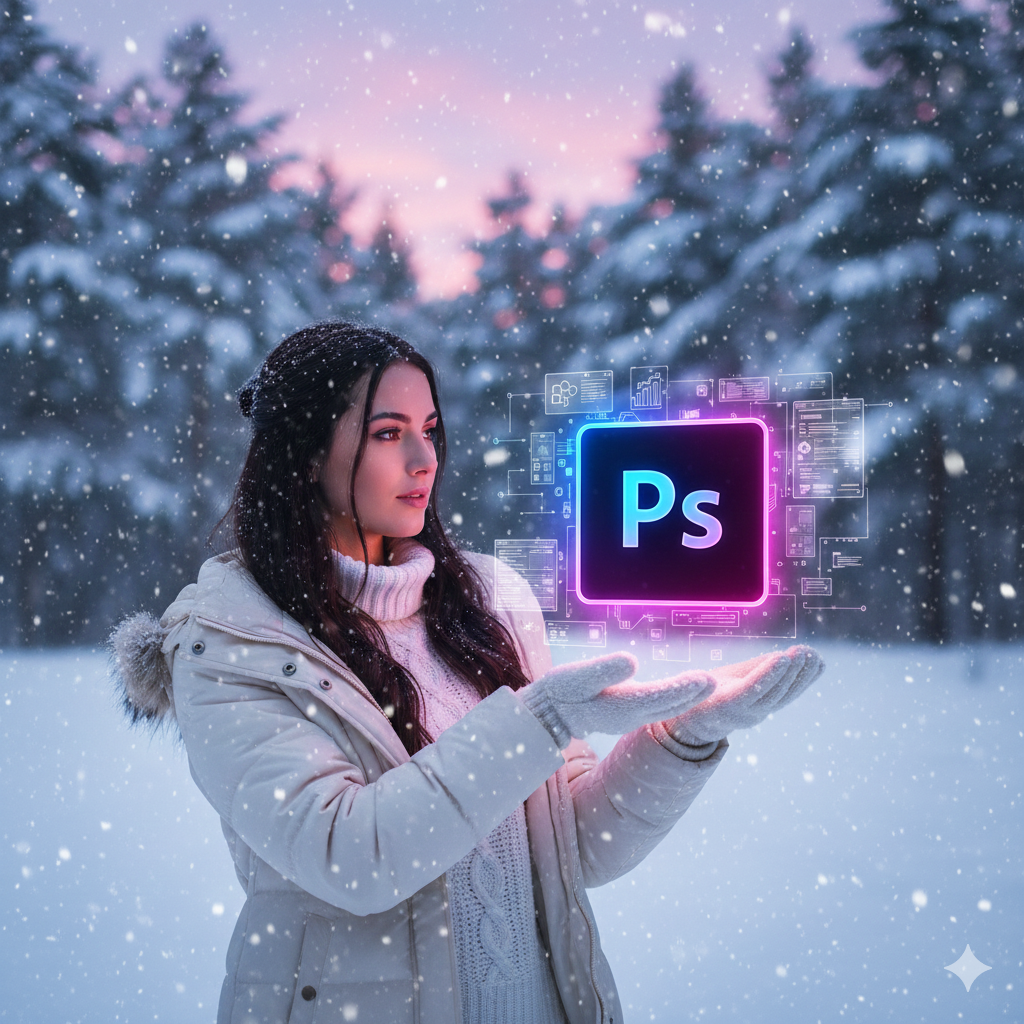
In order to simulate snow, you need first build a layer that is completely black and then add noise to it. A tiny Gaussian Blur should be used to soften the edges, and vertical motion blur may be used if desired to give the impression that snow is falling. Set the layer blending mode to Screen, then duplicate and resize layers to create a feeling of depth. The foreground should have bigger, more distinct flakes, while the background should have smaller, more blurry flakes. A believable interaction between snowflakes and the light sources in the scene may be achieved by adjusting the brightness or contrast.
The Combination of Scene Lighting and Weather Effects integration
Take into consideration the ways in which it interacts with the illumination that is already there. Rain may cause surfaces to generate delicate reflections, fog can scatter light, and snow can reflect colors that are already present in the environment. These interactions may be strengthened by using soft light layers, gradient overlays, or moderate dodge and burn changes. This will ensure that the weather effects provide the impression that they are a natural component of the landscape.
The Maintenance of a Workflow That Is Not Destructive
In order to tweak location, density, or visibility, you should keep each effect on its own independent layer or Smart Object, and you may utilize masks to do so. Because of this, it is possible to make incremental tweaks to the intensity, angle, or blending without changing the original picture, which provides the greatest amount of freedom for experimentation.
Finalize the Refinements
Ensure that the snowflakes, fog, and precipitation are included into the picture in a natural way by examining it at a variety of magnification settings. Make any necessary adjustments to the opacity, blur, and layer order, always ensuring that the effects are in harmony with the perspective, light sources, and depth cues of the scene. In order to improve mood without overpowering the piece, subtlety is essential; authentic weather boosts mood.
A combination of technical expertise and creative observation is required in order to create realistic weather effects in Photoshop. Adding depth, atmosphere, and a sense of narrative to their photographs is something that designers may do by meticulously stacking elements such as rain, fog, or snow and blending them with lighting and perspective. When these approaches are mastered, it is possible to create environmental modifications of professional quality that provide a natural and immersive experience.