Controlling Applications Running in the Background to Improve Windows’ Battery Life
Controlling Applications Running in the Background to Improve Windows’ Battery Life
The longevity of a computer’s battery has emerged as one of the most crucial components of contemporary computing. Unnecessary background activity may drain battery and degrade performance, regardless of whether you are using a laptop for business, study, or pleasure purposes. Windows enables a large number of applications to operate in the background, doing functions such as updating, notifying, or synchronizing. Despite the fact that it is handy, this continuous background activity uses up energy and reduces the battery’s lifespan. It is possible to significantly increase the battery life of your device and enhance the overall efficiency of your system by learning how to manage and regulate these background applications.
Acquiring Knowledge about Windows’ Background Applications
Programs that continue to carry out their functions even while you are not actively utilizing them are referred to as background applications. Checking for incoming emails, synchronizing cloud files, regularly updating social media feeds, and giving alerts are all examples of jobs that fall under this category. Although these capabilities give real-time information, they also utilize resources such as the central processing unit (CPU), memory, and network, which results in increased battery consumption. You will have greater control over the resources of the system thanks to the built-in options that are included in Windows 11 and Windows 10, which allow you to manage how applications behave while they are running in the background.
Keeping an eye on the applications that are operating in the background
Identifying which applications are running in the background is the first step in maximizing the amount of time that a battery can last. To open the Task Manager, follow these steps: press Ctrl, Shift, and Esc. A list of applications that are now executing, together with their CPU, memory, and power consumption, may be seen under the Processes tab. You may determine which applications use the most power by sorting this list according to the amount of power they use or the trend in their power use. Once you have identified the individuals responsible, you will be able to choose whether you will restrict their activities or fully eliminate them.
Making Use of Windows Settings to Limit Activity in the System Background
Controlling the behavior of applications running in the background is a built-in capability of Windows. Launch the Settings app, then go to System > Power & battery > Battery use. There will be a breakdown of which applications are using the most battery power, which you will view. If you click on an application, you will be presented with alternatives for background activities, such as letting Windows decide, always, or never. When you choose Never for applications that you do not use regularly, you assure that they will not operate in the background and use power without being required to do so.
Managing Applications Running in the Background Using Privacy Settings
Managing activity that occurs in the background may also be accomplished via the Privacy and security settings. You may access the background applications by going to Settings > Privacy & security > App permissions. Accessing this section allows you to disable background permissions for certain applications. When it comes to video players, games, or social apps that do not need continual access, for instance, you may enable background operation for vital services such as OneDrive or Outlook, but you might deactivate it for other applications.
Altering the Power Mode in Order to Longen the Battery’s Life
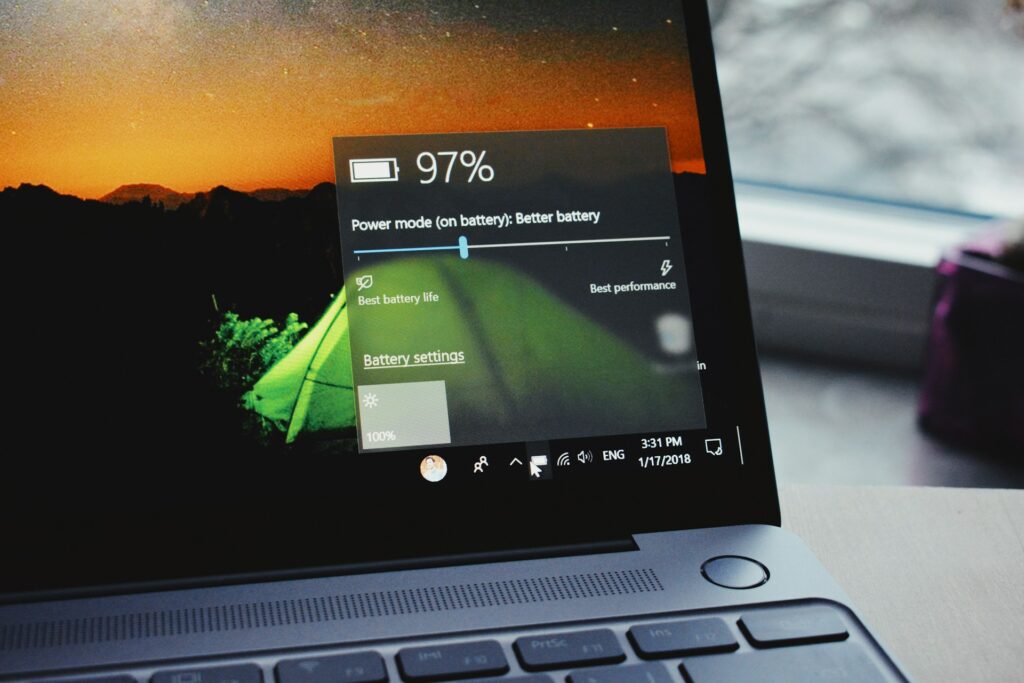
Windows comes with a function called Power Mode that allows users to choose the degree to which the operating system conserves energy. To access the Power mode option, go to Settings > System > Power & battery on your electronic device. Choose the power efficiency that is best for you to cut down on background operations and increase the battery’s lifespan. This configuration results in a minor decrease in performance, but it reduces the amount of power that is wasted by applications and activities that are running in the background.
Disabling Programs for New Businesses
There are a lot of applications that set themselves up to run automatically once Windows begins. This software not only slows down the process of booting the computer, but it also runs in the background without being seen, eating resources. You may deactivate them by opening Task Manager and selecting the Startup programs option from the menu. Disable any program that is not absolutely necessary by right-clicking on it. You may enhance both speed and energy economy by turning off superfluous launch apps. This will limit the amount of activity that occurs in the background.
Turning Off Cloud Services and Background Sync Configuration
Files are regularly synchronized via cloud-based applications like as OneDrive, Dropbox, or Google Drive, which ensures that your data is always up to date. The synchronization, notwithstanding its usefulness, requires the usage of battery power. You may temporarily suspend syncing while working on battery power by right-clicking the icon for OneDrive or Dropbox on the taskbar and choosing suspend syncing from the context menu that appears. So that your files are always up to date, restart syncing as soon as you are connected in again. As a result of this simple tweak, power consumption caused by continual background uploads and downloads is prevented.
Using the mode that saves battery:
When your battery life dips below a specific threshold, the built-in technology that Windows provides, known as Battery Saver, will automatically lower the amount of background activity. To turn it on, go to Settings > System > Power & battery, and then turn on the Battery saver using the toggle switch. The screen brightness is reduced, background data is restricted, and updates that are not needed are paused thanks to this function. In addition, you have the option of configuring Battery Saver to turn on automatically when a certain percentage of your battery is reached.
Taking Control of Notifications in Order to Decrease Background load
Numerous programs that run in the background are connected to alerts that come from applications such as Mail, Calendar, or social media clients. Every every notification calls for resources from the system. Managing these may be accomplished by going to Settings > System > Notifications and turning off notifications for applications that do not need your immediate attention. While this minimizes the number of background checks and saves energy, it does not compromise the delivery of vital notifications such as system alarms or work emails.
Terminating Background Services with the use of Task Manager
Certain services and processes will continue to operate even after the applications that relate to them have been closed. Launch Task Manager, go to the Details tab, right-click the process you wish to discontinue, and then choose End task from the context menu that appears. Users with sophisticated knowledge who are able to identify which processes may be terminated without risk can benefit from this strategy. If you want to avoid stability difficulties, you should avoid terminating system-critical services.
Maintaining an Up-to-Date system and driver installation
Outdated software might lead to inefficiencies, which can cause your battery to discharge more quickly. Windows updates that are performed on a regular basis often contain power management improvements. For the purpose of ensuring that your system is up to date, go to Settings > Windows Update. For further information, go to the website of the manufacturer of your device in order to install the most recent drivers for the chipset, graphics, and power management. Drivers that have been updated allow your hardware to handle background tasks in a more effective manner.
Utilization of Tools for Performance Monitoring
Performance monitoring tools such as Resource Monitor and Power Efficiency Diagnostics are some of the built-in features that come standard with Windows. If you want to see extensive information on the use of the CPU, disk, and network, you may launch Resource Monitor by entering it into the Start menu. To do a more in-depth investigation, use the Command Prompt and execute the command powercfg /energy. The result is a comprehensive analysis that identifies the applications and procedures that have the greatest impact on the battery life.
There will be less live tiles and widgets.
Live tiles in the Start menu and widgets in Windows 11 are examples of features that continuously update information such as market prices, the weather, and information about the news. These updates demand activity on the network as well as cycles on the CPU. You have the option to deactivate live tiles altogether by either right-clicking on a live tile and selecting the Turn live tile off option, or by going to Settings > Personalization > Taskbar > Widgets. Your desktop will be less cluttered as a result of this, in addition to saving electricity.
Modifying the Permissions of Background Applications for Microsoft Store Applications
In order to get updates or display live information, Microsoft Store applications often operate in the background. Start by going to Settings > applications > Installed applications, then selecting the program you want to modify, and then clicking on Advanced settings. When it comes to the permissions for background applications, choose Never. Apps that are lightweight yet persistent may be prevented from wasting energy by making this simple adjustment.
Putting a cap on background data in order to improve battery life and bandwidth
In situations when you are working on battery power or utilizing a metered connection, minimizing the amount of background data you use is beneficial to both performance and energy economy. Enable the Metered connection by going to Settings > Network & Internet > Data use and selecting the option. Because of this, applications and Windows updates are prevented from consuming network resources in an unnecessary manner, which leads to an indirect conservation of battery life.
One of the most efficient methods to reduce the amount of time your Windows laptop’s battery lasts is to manage the applications that run in the background. You are able to increase the amount of time that you can use the system while maintaining its performance if you take control of which applications run while you are not using them, make adjustments to the power settings, and disable any superfluous background activities. Your Windows smartphone will become not just more energy-efficient but also smoother and quicker in day-to-day usage if you make a few simple adjustments, such as limiting the rights that apps have to access your device and enabling the Battery Saver feature.